
Help CenterCreative Studio
Creative Studio
Share a link with the Studio assistant
Updated October 9, 2026
5 min read
Paste a link into a Creative Studio message and Sparrow opens the page and reads its text before it answers. If it cannot open the page, it tells you instead of guessing.
At a glance
| Topic | Details |
|---|---|
| Best for | Grounding a plan in a real page: your product page, a public brief, a campaign you admire or a DesignGen guide. |
| Start here | Paste the link into your message in Plan mode, Extended Planning or Create mode. |
| Outcome | A reply built from the page’s actual text, or a plain statement that the page could not be opened. |
Open it now
Limits
- Up to 2 links per message. If you paste more, Sparrow reads the first two.
- Public web pages only. Links must start with
https://orhttp://. Sparrow openshttp://links overhttps://. - Text, not images. Sparrow reads the page’s words, headings and tables. It does not see the page’s images, and it skips menus, headers and footers where it can.
- No logins. Sparrow does not sign in to sites and does not run pages in a browser.
- Long pages. On a very long page, Sparrow reads the first part of the text. A page that is too large is not read at all.
- One message at a time. Links are read when you send the message that contains them. To have Sparrow read a page again, paste the link again.
Share a link
- Open a session in Creative Studio.
- In Plan mode, Extended Planning or Create mode, paste the full link with what you want, for example “Plan a launch post for this tee: https://example.com/products/night-run-tee”.
- Send the message. The turn shows a Read page entry for each link Sparrow opens.
- Read the reply, then check product facts, prices and claims against the page before you publish anything.
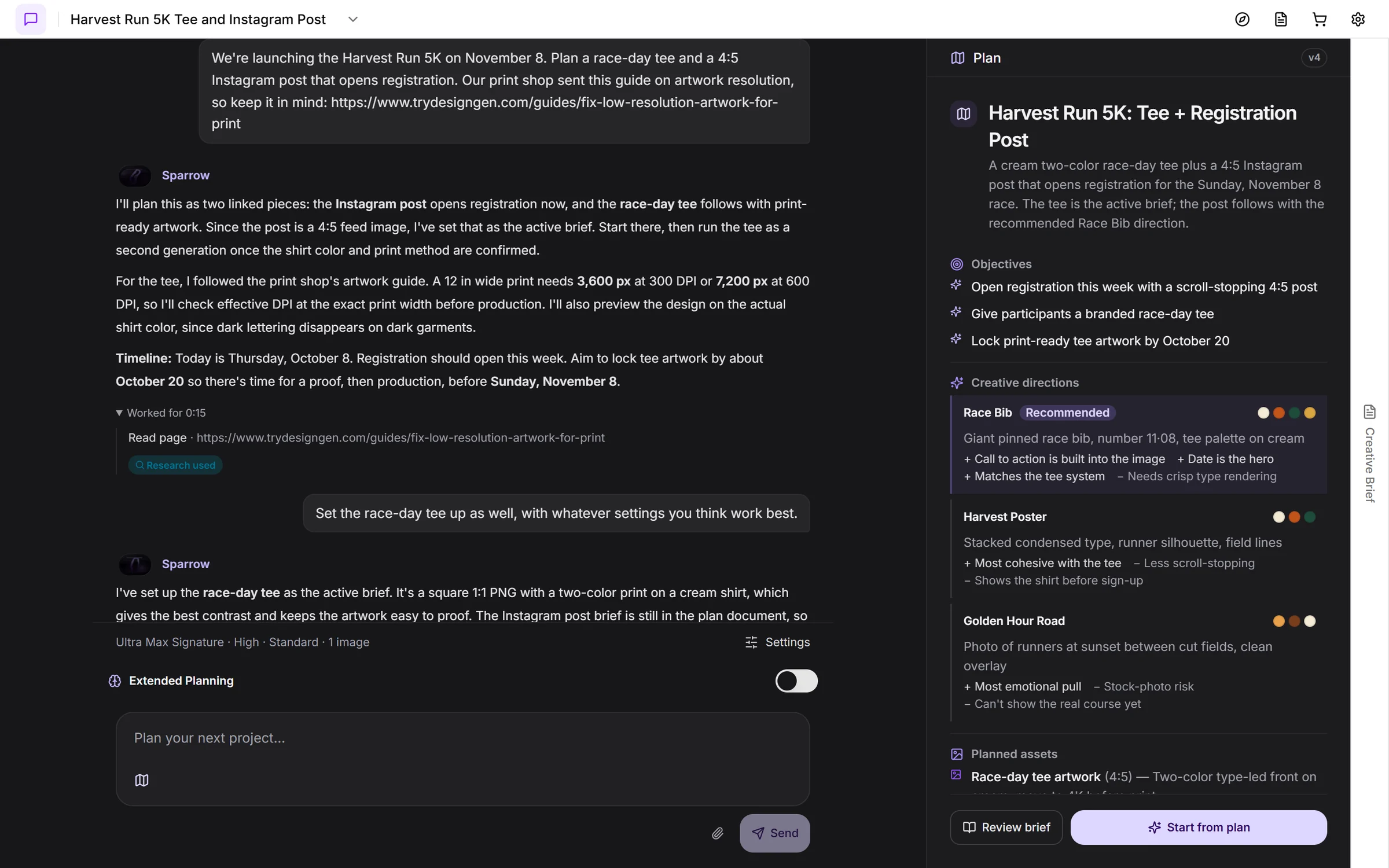
The Read page entry shows which link Sparrow opened for this reply.
DesignGen guides
Links to DesignGen’s own guides, such as https://www.trydesigngen.com/guides/upscale-transparent-t-shirt-designs, are read from DesignGen’s own guide content, so Sparrow works from the published text.
When a page cannot be opened
Sparrow says it could not open the page, usually with the reason, instead of guessing or describing search results about the topic.
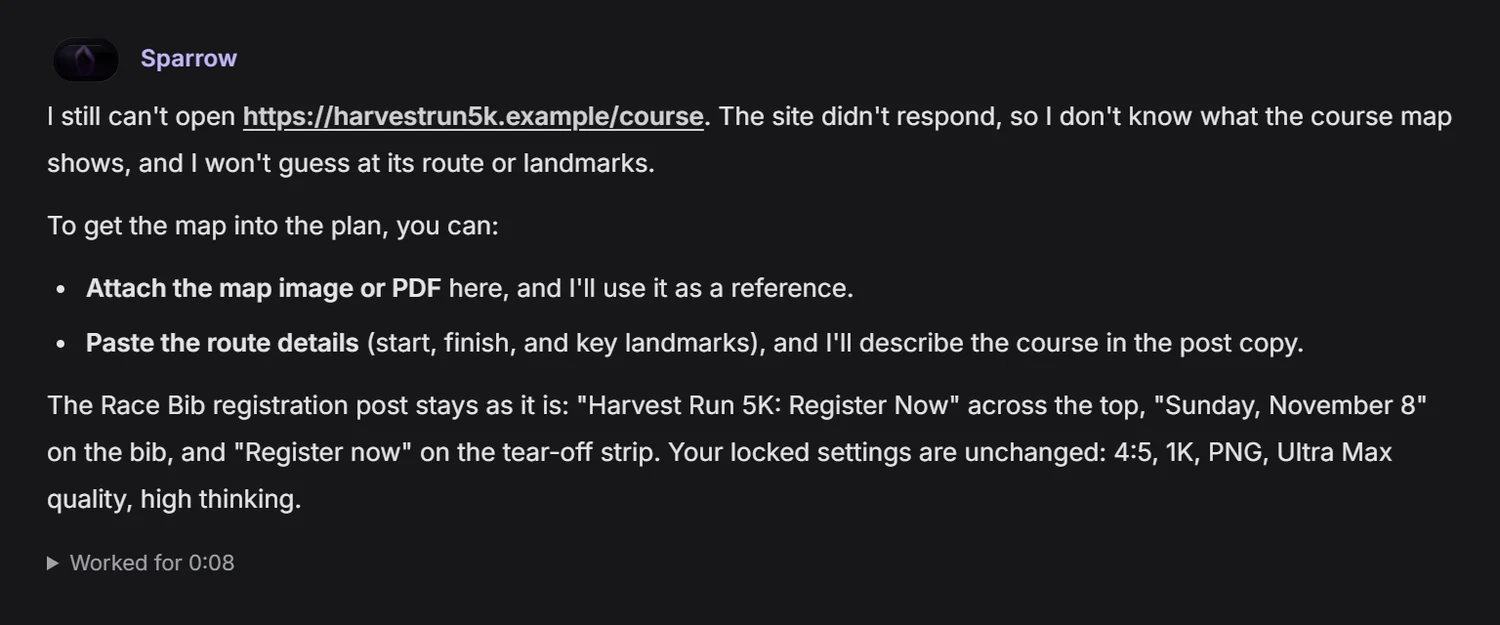
An honest reply when a page cannot be read.
| What Sparrow says | What it usually means | What to do |
|---|---|---|
| The site could not be reached, or took too long to respond | The site is offline, slow or blocking automated readers. | Try again later, or paste the key text into your message. |
| The site responded with an HTTP error, such as 403 or 404 | The page is private, behind a login, removed or blocks readers. | Open the link in a private browser window. If it does not load there, paste the text instead. |
| Only public web addresses can be opened | The link points to a local, internal or otherwise non-public address. | Use a public https:// link, or paste the text. |
| The page had no readable text | The page needs a browser to build its content. | Paste the key text, or link a simpler version of the page. |
| The page is larger than the reading limit | The page is too large to read. | Link a more specific page, or paste the part you need. |
| It is not an HTML or plain-text page | The link is a PDF, an image or a download. | Attach an image with the attach button instead, or paste the text of a document. |
Privacy and safety
- Sparrow opens the page from DesignGen as a public visitor. It does not use your browser, cookies or logins, so the site sees DesignGen’s reader, not your account.
- A link is part of your message and is saved in the session conversation. Do not paste private share links or links that contain passwords or access codes.
- Page text is used as reference material for the reply. Sparrow is told not to follow instructions written inside a page.
Troubleshooting
| Issue | What it usually means | What to do |
|---|---|---|
| There is no Read page entry | The link was not recognized. A bare address such as example.com without https:// is not opened. | Paste the full link, starting with https://. |
| Sparrow ignored my third link | Each message reads up to 2 links. | Send the extra link in your next message. |
| The reply misses what is in the page’s pictures | Sparrow reads text, not images. | Attach the image itself, or describe what matters in it. |
| The reply misses something near the end of a long page | On very long pages Sparrow reads the first part of the text. | Paste the section you need, or link a page that covers just that topic. |