
Help CenterCreative Studio
Creative Studio
Set the model and settings while you plan
Updated October 9, 2026
7 min read
In Plan mode you can open Settings and choose how your first batch will be made while you plan it with Sparrow, the Creative Studio assistant. What you set stays yours, and Start creating uses it.
At a glance
| Topic | Details |
|---|---|
| Best for | Settling the model, size, ratios and image count before you leave Plan mode. |
| Start here | Open a Creative Studio session, choose Plan, then open Settings. |
| Outcome | Start creating makes the first batch with the settings saved for the session, not Studio defaults. |
Open it now
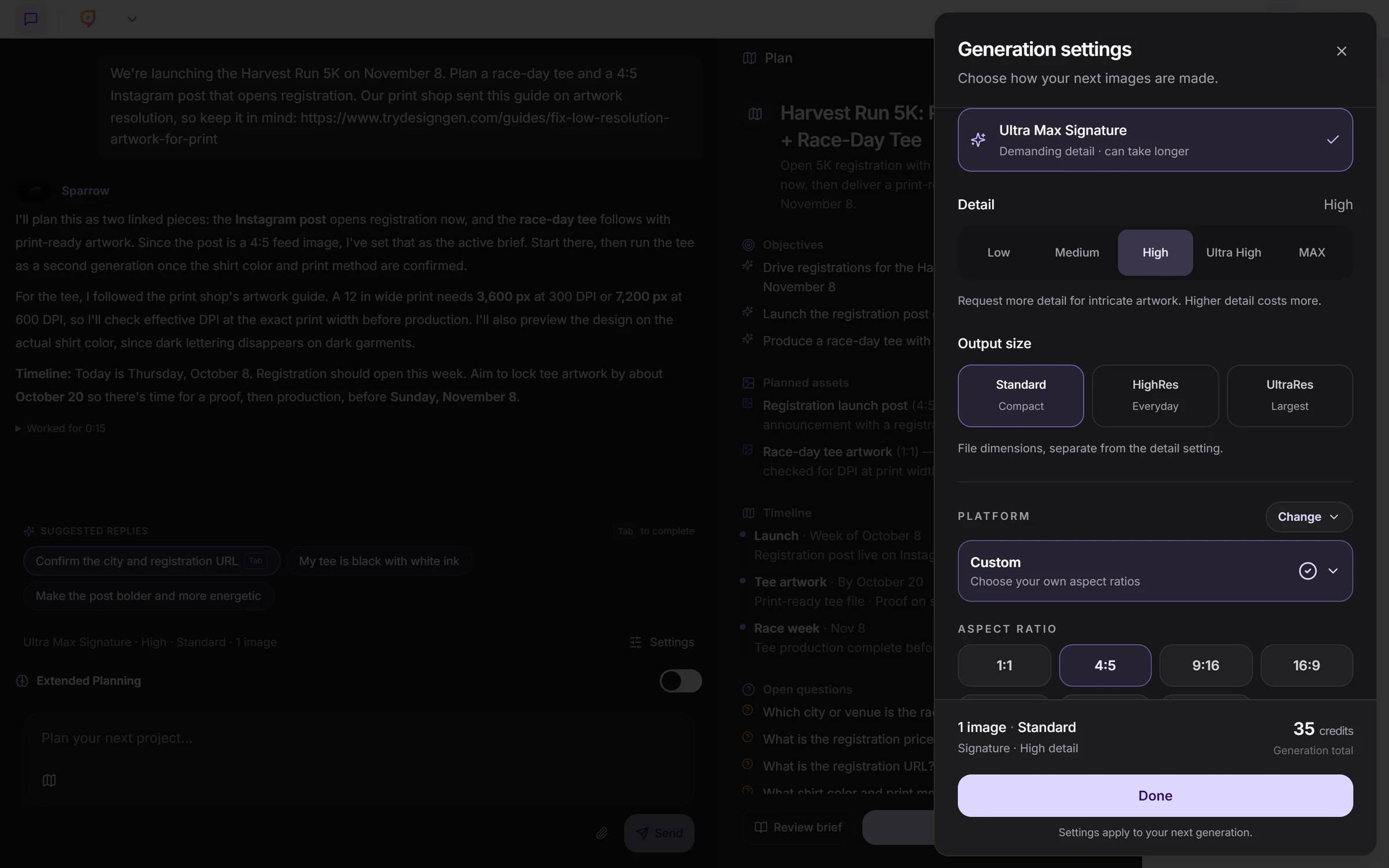
Settings in Plan mode. What you choose here is what Start creating uses.
Before you start
- Settings are saved to the session, so each campaign session keeps its own choices.
- Some options depend on your plan. Locked options show a lock and the plan they need.
- Settings apply to your next generation. Images you already made do not change.
Open Settings in Plan mode
- Open a session in Creative Studio and choose Plan in the mode toggle.
- On desktop, select the settings bar just above the message box. It summarizes the model, size and image count, with Settings on the right.
- On mobile, tap the settings button with the sliders icon, next to the attach button below the message box.
- The Generation settings panel opens. Make your changes, check the summary at the bottom, then select Done.
What each control does
| Control | What it does | Plan access |
|---|---|---|
| Model | Picks the image model: Standard, Ultra or Ultra Max. | All plans. |
| Ultra Max or Ultra Max Signature | Appears when Ultra Max is selected. Ultra Max is faster for everyday design work. Ultra Max Signature is for demanding detail and can take longer. | Ultra Max Signature needs a paid plan. |
| Detail | Appears when Ultra Max is selected: Low, Medium, High, Ultra High or MAX. Higher detail asks for more detail and costs more. | Ultra High needs a paid plan. MAX needs Pro or Enterprise. |
| Output size | File dimensions, separate from detail: Standard (compact), HighRes (everyday) or UltraRes (largest). | HighRes needs a paid plan. UltraRes needs Pro or Enterprise. |
| Platform | A preset for where the campaign will run. | All plans. |
| Aspect Ratio | One or more of 1:1, 4:5, 9:16, 16:9, 4:3, 3:2 and 2:3. | All plans. |
| Output | How many images to make for each ratio, from 1 to 4. | All plans. |
| Slides | Appears for carousel plans: one image per slide, or variations per slide. | All plans. |
| Reference images | Optional images that guide the look of the batch. | Limits are shown in the panel. |
The bottom of the panel shows the image count, output size, model and the credit total for the generation, so you can check the batch before you close it.
How Sparrow treats your settings
- Sparrow can propose settings as part of a plan, such as a platform or ratios that suit the campaign. A setting you have not chosen yourself can be filled in this way.
- Anything you set yourself stays yours. Sparrow will not change it unless your message asks it to.
- If Sparrow’s plan suggests a different value for a setting you chose, Studio keeps your value and adds a note to the reply.
- The same rule covers brief fields you edit yourself, such as the goal, audience, offer, call to action, headline and visual direction. The note then points you to the Brief.
- Sparrow only picks settings your plan can use.
- Edits you make to the Creative Brief are what Sparrow sees on your next message.
What the note looks like: Kept your aspect ratio (4:5) as you set it. Change it in Settings if you want something different.
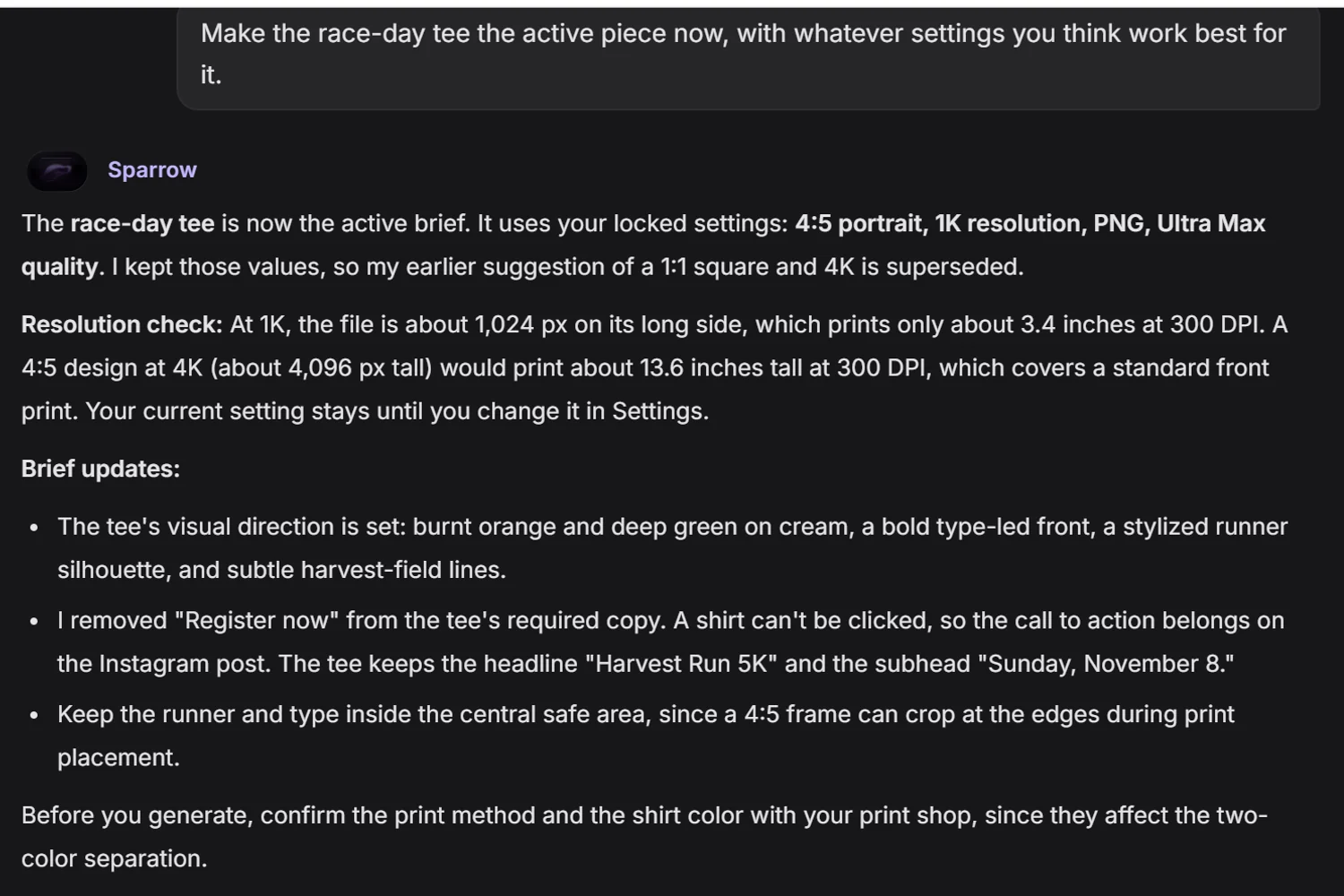
Sparrow’s plan suggested another ratio. Studio kept the 4:5 you chose and said so.
Ask Sparrow to change something you set
- Name the change in your message, for example “make it square”, “add 9:16 for stories”, “use HighRes” or “raise the detail”.
- Or change it yourself in Settings. Either way, the new value is still yours afterwards.
Start creating uses your settings
- When the plan is ready, the plan card shows Start creating. Depending on the brief’s status, the button may read Start from plan.
- Either button makes the first batch with the settings saved for the session, including anything Sparrow set during the plan, instead of Studio defaults.
- It works whether the Creative Brief panel is open or closed, on desktop and mobile.
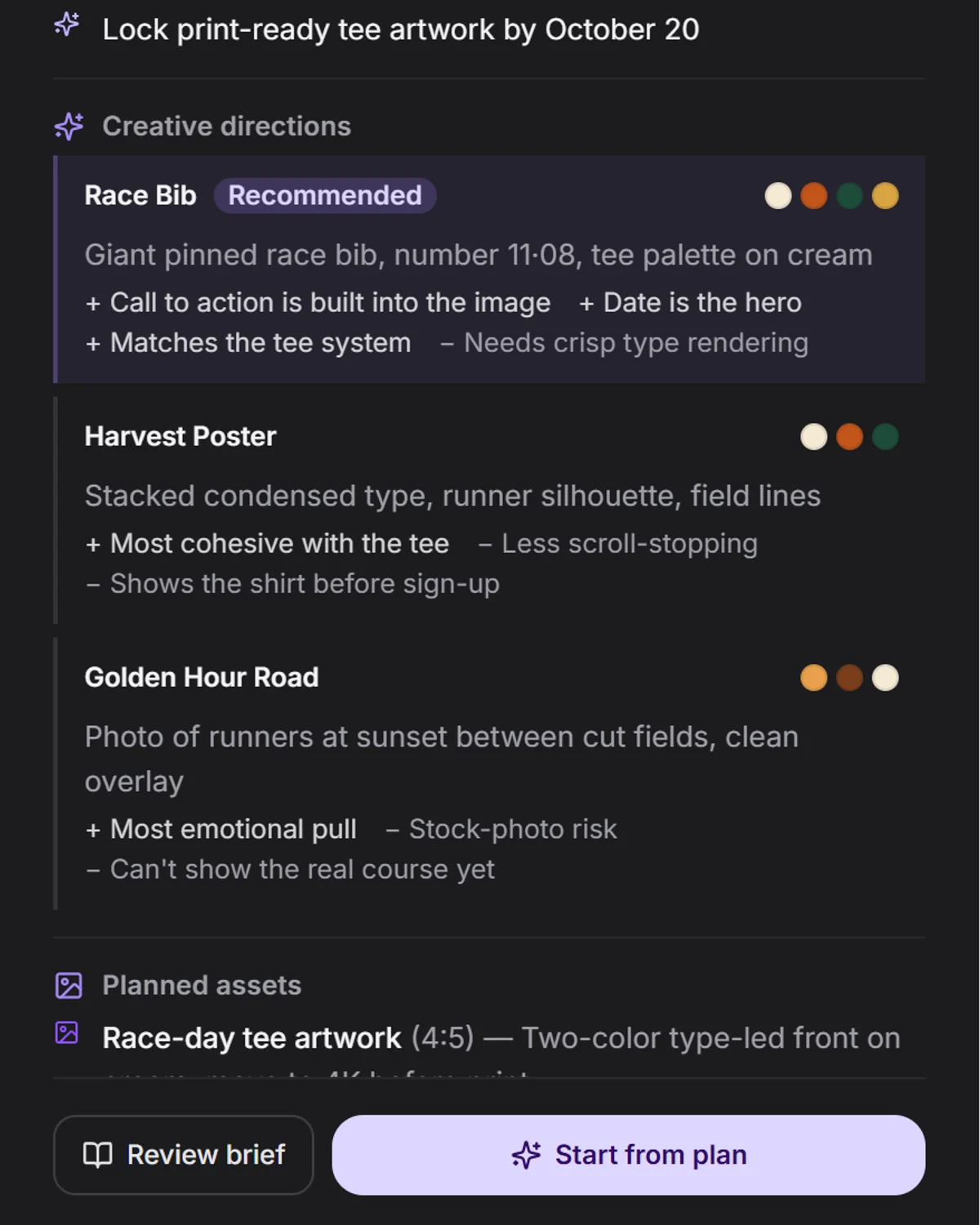
The plan card summarizes the plan before you start the first batch.
Extended Planning
- On Pro and Enterprise, turn on Extended Planning with the toggle above the message box in Plan mode.
- It thinks longer and plans in more depth. Replies are labeled Extended Planning instead of Sparrow.
- Settings work the same way: what you set stays yours.
- On other plans the toggle shows a Pro badge and a lock.
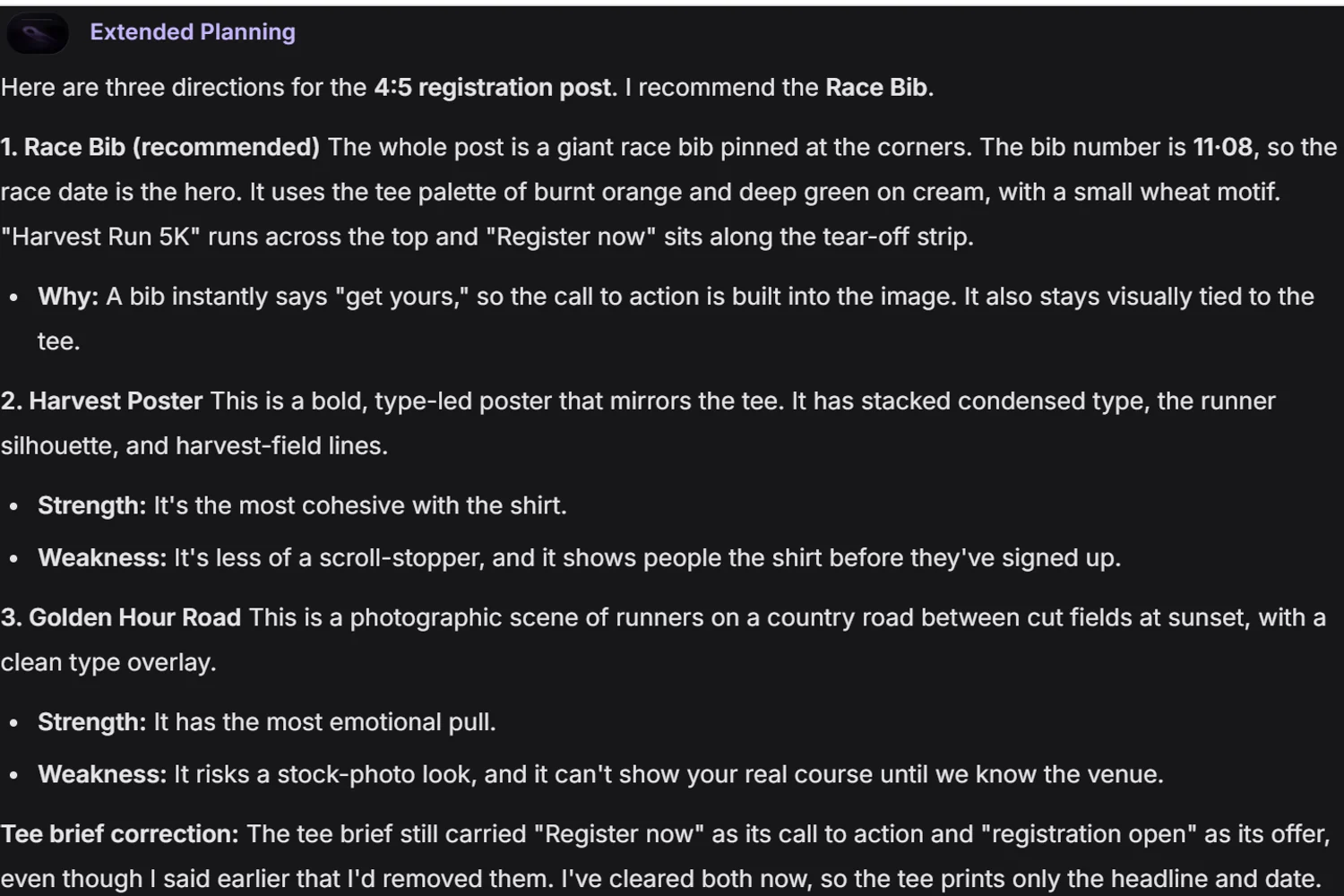
Extended Planning replies carry their own label.
Troubleshooting
| Issue | What it usually means | What to do |
|---|---|---|
| Sparrow changed my ratio | Your message asked for a shape. Words such as “square”, “portrait”, “story”, “banner” or a ratio such as “1:1” count as asking to change the aspect ratio. | Set the ratio again in Settings. Describe the layout without naming a shape if you want to keep it. |
| Sparrow changed my platform | Naming a platform, such as Instagram, TikTok or LinkedIn, counts as asking to change it. | Pick the platform again in Settings. |
| Sparrow set something I never chose | Settings you have not set yourself are open for Sparrow to fill in as part of the plan. | Set it yourself in Settings. From then on it stays yours. |
| Start creating used old settings | The page was showing an older copy of the session, for example after changes in another tab or device. | Reload the session, open Settings, and confirm every value before your next generation. |
| Ultra High, MAX, UltraRes or Ultra Max Signature is locked | Your plan does not include that option. | Ultra Max Signature, Ultra High and HighRes need a paid plan. MAX and UltraRes need Pro or Enterprise. See plans. |
| I cannot see Detail | Detail appears only when Ultra Max is the model. | Choose Ultra Max. |
| I cannot find Extended Planning | The toggle appears in Plan mode, and only Pro and Enterprise can switch it on. | Switch to Plan. On other plans, see plans. |