
Released 11/12/2026
From a rough screenshot to SVG you can keep editing
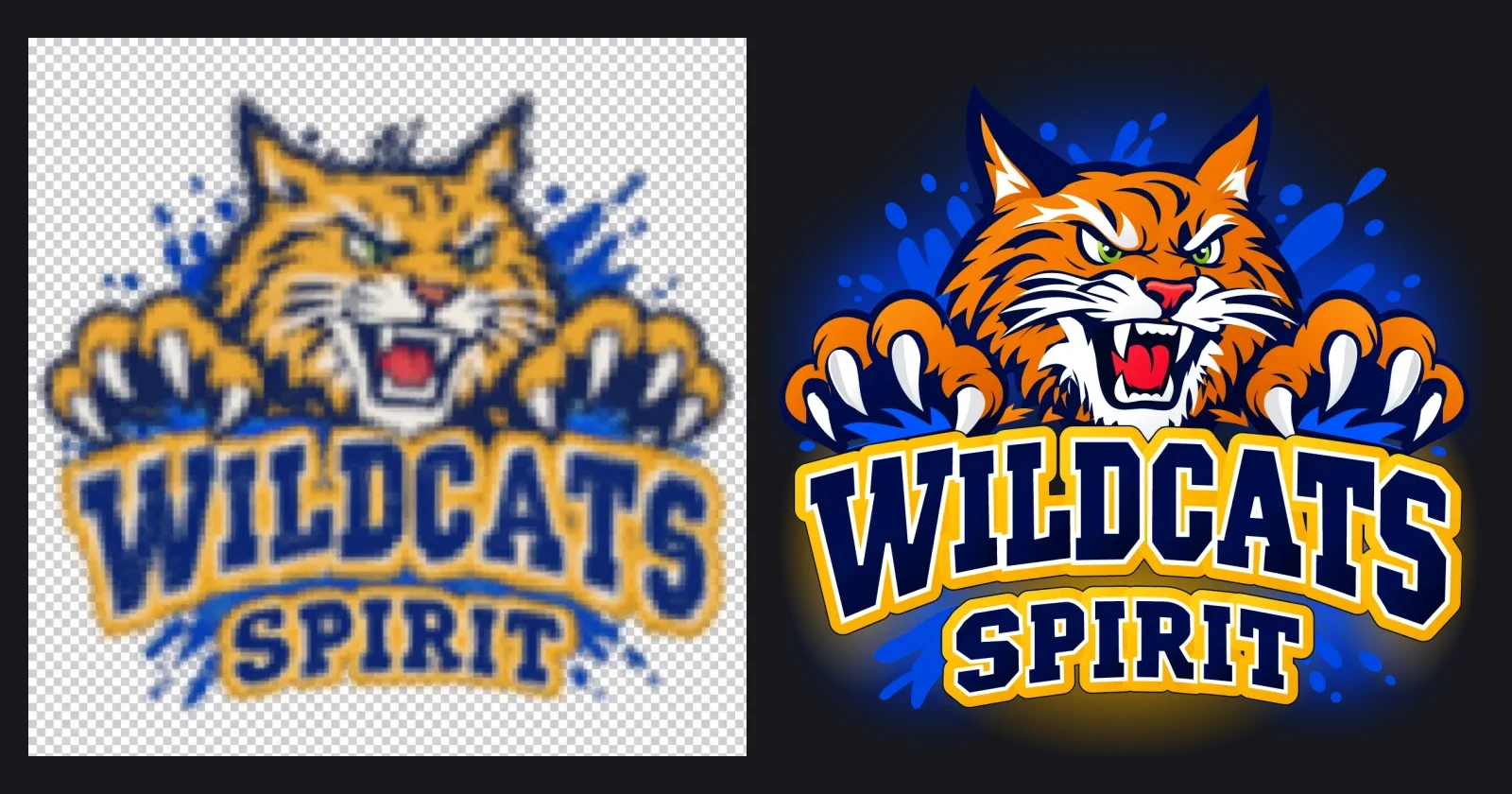
- Create still images or native SVG, or rebuild a rough raster reference as fresh SVG artwork with Screenshot to Design. Each result is a saved revision you can review, download and edit again.
Meet Opterra, your SVG editor
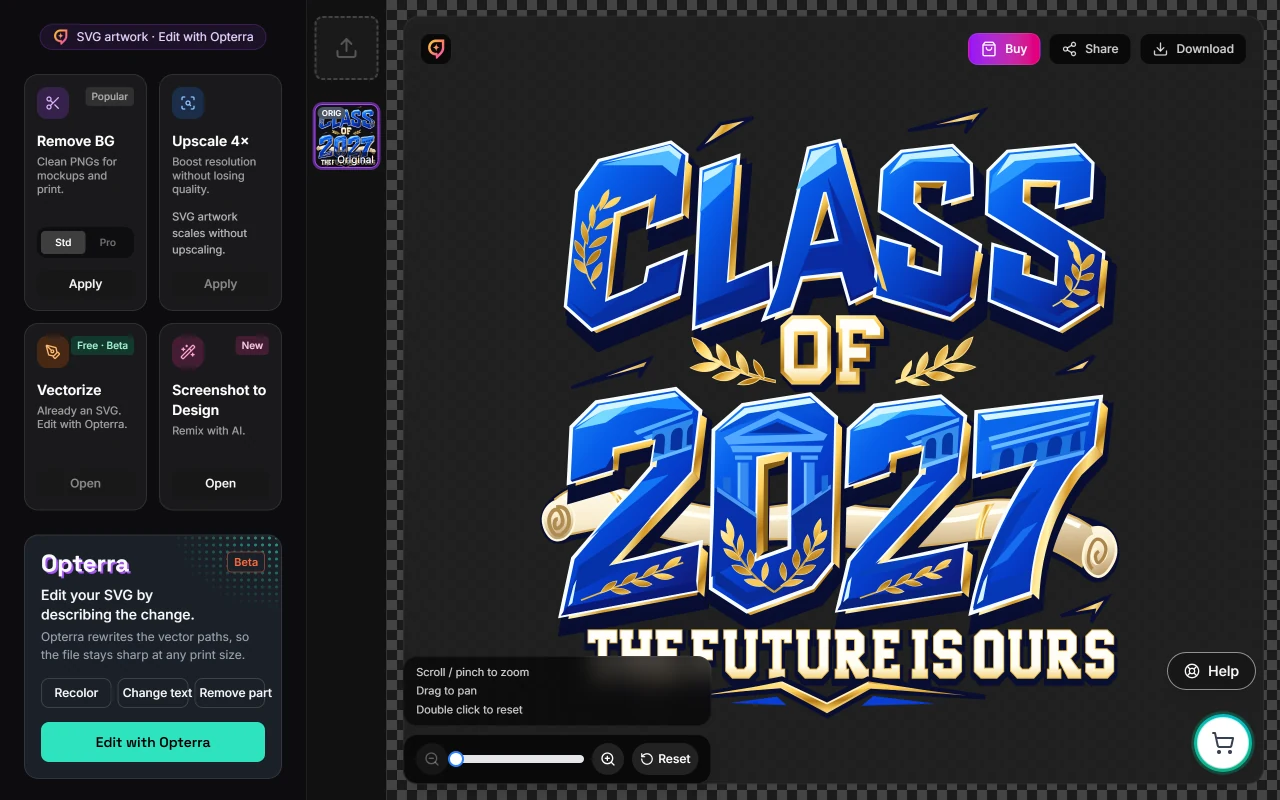
- Upload an SVG or open a saved one in Image Studio, then choose Edit with Opterra on the Opterra card, or start from Recolor, Change text or Remove part. Choose the objects to change, add markup when location matters and describe one focused change. On mobile, choose Opterra from the tools. In Vector Studio, it sits beside Layers and Colors with selection on the canvas.
- Every Opterra edit receives a separate review before it is saved, and a failed or outdated result is not applied. Opterra is included during beta. Each edit starts from the current artwork and the instructions you submit, so repeat the details that must stay fixed.
- Get help with selection, markup and revisions
Bring larger SVG files
- SVG upload limits follow your plan: 2 MB on Free, 10 MB on Hobbyist, 50 MB on Creator, and 100 MB on Pro and Enterprise. Opterra accepts any SVG within your plan limit, and you can still use markup when a file has too many objects to list.
Work in your preferred surface
- Use the same artwork workflows in Image Studio, Creative Studio, Operator, the developer API and connected assistants. Your plan and the selected settings determine what is available.
- Image Studio creates still images and SVG. Animation is not part of this release.