
Help CenterOperator
Operator
Fix a print file with Operator
Updated October 8, 2026
4 min read
At a glance
| Topic | Details |
|---|---|
| Best for | Turning artwork that will not print cleanly into a print-ready file. |
| Start here | Attach the artwork in Operator and say the print width you need. |
| Outcome | A clean SVG and a 600 DPI PNG at your chosen width, with notes on anything you should review before production. |
Open it now
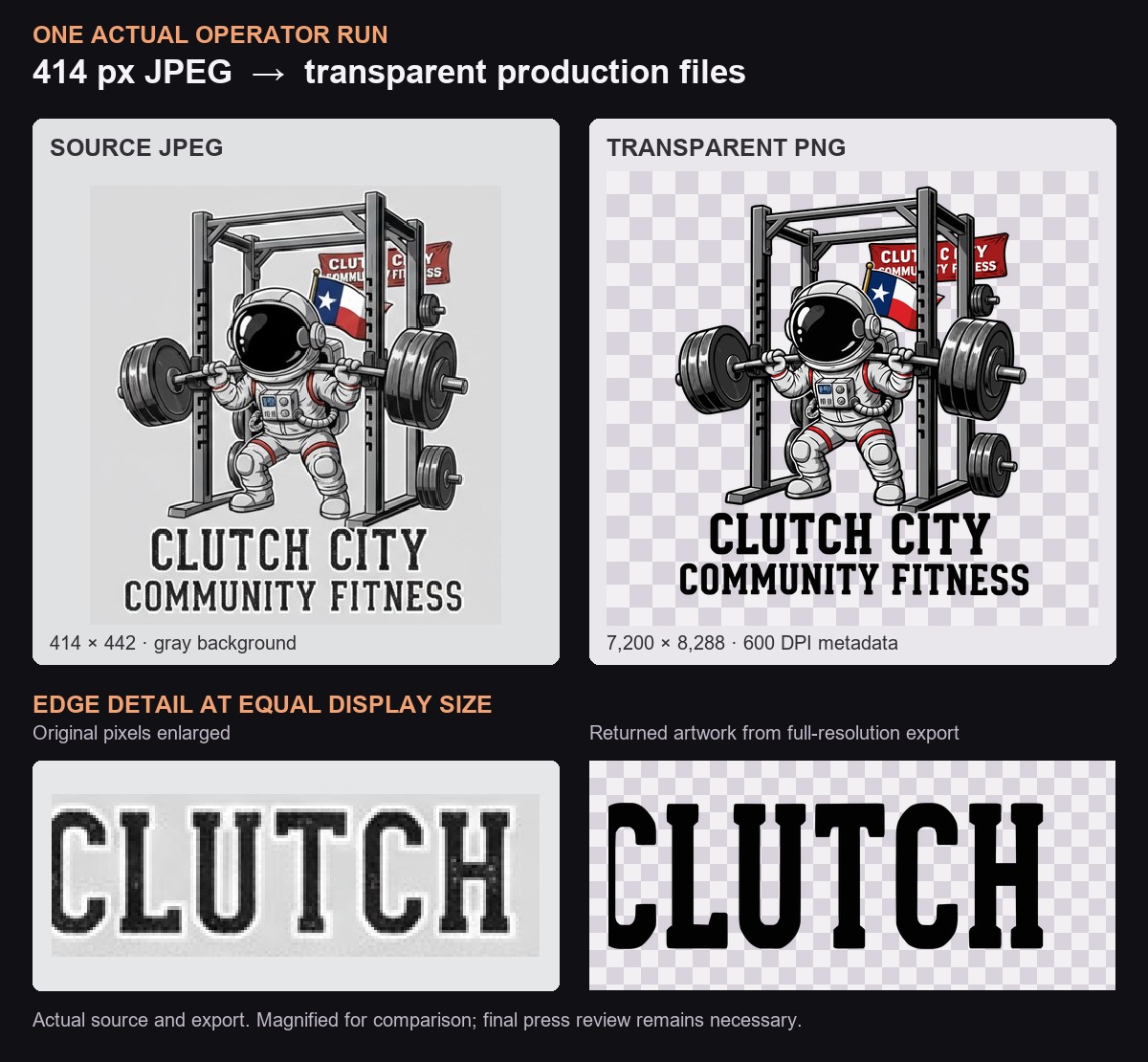
An earlier file fix proof: the original low-resolution source next to the exported transparent PNG. Shown for illustration; this example predates the reliability changes described below.
Before you start
- Have the print width ready. Operator uses it to size the output.
- Runs are saved on the server, so you can leave the tab and come back later for status and files.
- Review the file before production. Some runs finish with notes, or pause for input, instead of a flawless result.
Steps
- Attach the artwork in Operator.
- Say the print width you need.
- Start the run.
- Leave and come back later. The run keeps going in the background, and the files and status are waiting when you return.
What Operator decides
- Clean but low-resolution artwork, such as logos, lettering, or illustrations, is enlarged faithfully instead of being redrawn, so your original design is kept.
- Operator rebuilds only the captures that cannot print as-is: photos of garments, mockups, screenshots, and damaged files.
Outputs
- A clean SVG and a PNG at 600 DPI for the width you chose.
- The default width is 12 in, which produces a PNG that is 7,200 px wide.
Transparent artwork
- Operator checks transparent art against a backdrop color that does not appear in the design, so white or grey parts of the design are not missed.
- The backdrop is removed without grey fringes or filled-in holes.
Follow-up changes
- A follow-up request such as "make the text grey" builds on the previously approved result instead of starting over.
- Color-only changes are applied exactly, and are not treated as a defect to fix.
Reading the run summary
- Non-blocking notes appear as Delivery notes.
- A run that fails states why, for example a plan that could not be built or a print check that could not pass, instead of a generic error.
- Some runs finish with notes, or pause for input. Review the files before production either way.
Before you send it to production
- Check lettering for clean edges after enlargement.
- Check small text is still legible at the chosen width.
- Check contrast against the garment color, not just against a white background.
- Check the final size matches what you asked for.
Troubleshooting
| Issue | What it usually means | What to do |
|---|---|---|
| The run finished with Delivery notes | The result is usable, but Operator flagged something worth a human look. | Open the notes and review the flagged area before production. |
| The run failed with a reason | A plan could not be built, or a print check could not pass. | Read the stated reason, then try again with a clearer or higher-quality source file if needed. |
| A photo or mockup was rebuilt instead of upscaled | The source was a photo, mockup, screenshot, or damaged file, not clean art. | This is expected. Review the rebuilt result the same way you would review new artwork. |
| The run is still going after you left | Runs continue in the background on the server. | Come back to the same run later. There is no need to keep the tab open. |