
Plan and measure posts in Social Connect

Use Calendar to decide when to post, then use Results to see how published posts performed. Keep both views on the account and time period you actually want to compare.
Find room in the Calendar
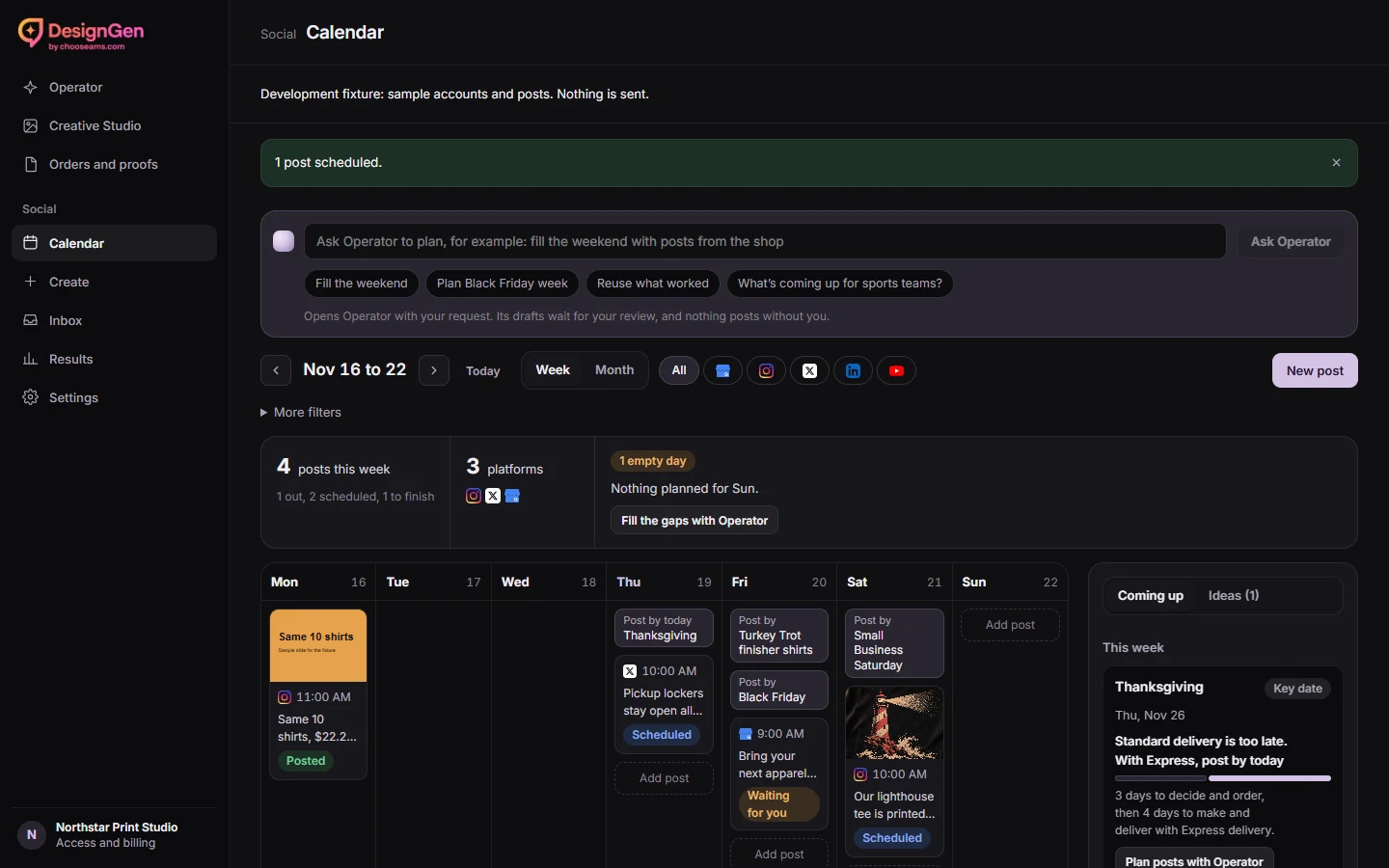
Open Calendar and verify its timezone. Use Week, Month and the filters to focus on the period and account you need.
Open a slot or choose New post to start in Create. Check the date and timezone before you approve the post.
Use the default Coming up panel to review shopping dates and available ideas. When a card shows a post-by date, read the fit, date confidence and sources where provided. Treat an estimated date as a planning aid. Use Start a post when offered, or Plan posts with Operator if you have access. Review the prefilled request before sending it in Operator.
Compare like posts in Results
- Open Results and choose an account and reporting period.
- Read the available reach and engagement metrics before comparing periods. If an account does not report a metric, leave that part of the comparison open.
- Read the reach chart as totals for posts grouped by their publication day. A point shows reported reach of those posts, which can include activity after that day. Use the chart’s table for exact values.
- Use top posts or the engagement map to choose something to test next. A suggested posting time can appear in Create once there is enough usable history.
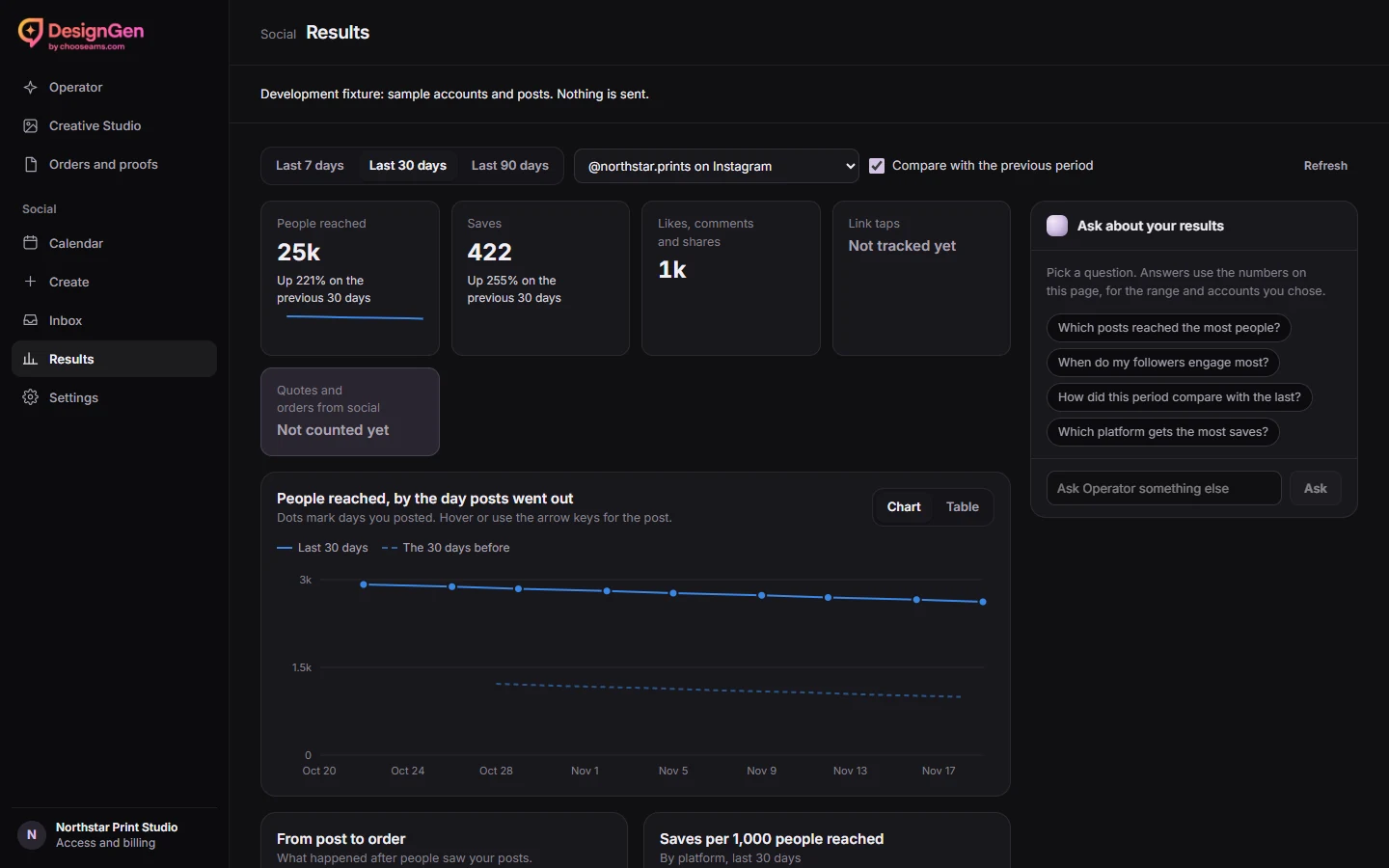
For the lighthouse tee, compare the reveal with a close-up once both have had time to gather data. Ask “Which post earned more saves?” Check the account and period before comparing the numbers.
Understand link tags
Link tags label links on destinations that support them. Results currently does not track link taps, quotes or orders. Use reported post metrics to judge on-platform interest and your own store records to assess sales.
If no metrics appear, check the date range, account connection and platform data availability. For uncertain delivery, check the original post in Calendar.